 |
|
and how they may affect YOU. |
1) Chrome Blocks *ABSTAR* Cookies
2) *ABSTAR* Lost Logins Problem
Chrome Blocks *ABSTAR* Cookies! How to Fix…
(This is available as a PDF- CLICK HERE to download.)Chrome Cookie Problems July 15 2017
Google's Chrome is a wonderful browser. Unfortunately, the world is full of dangers. Google's Chrome tries to keep up with these dangers by adjusting the security environment the browser responds to.
With regret, this now includes problems with the cookies in Moderation.org. This includes logins to some of our popular services, including *ABSTAR*.
Chrome now is treating *ABSTAR* cookies (essential for using the program) as "third-party cookies". Obviously this needs to be fixed, but this is going to be in the (near) future. Until then, there is a work-around. This is a one-time fix, which should never need to be repeated. (Note that you may be having similar problems on other sites; this fix applies to more websites than just moderation.org!)
From the *ABSTAR* login page (or any moderation.org page) you can set the site to allow "third party cookies."
Look at the Address bar, showing the page's address. Google has a Security Manager tool on the left side of this address bar, which allows you to set permissions.

We need to set moderation.org (and www.moderation.org) to "allow third-party cookies" and to stop blocking all moderation.org cookies.
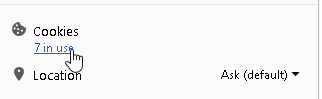
Right click on the Security Manager icon, to the left of the URL in the Address bar. ("Omnibox")
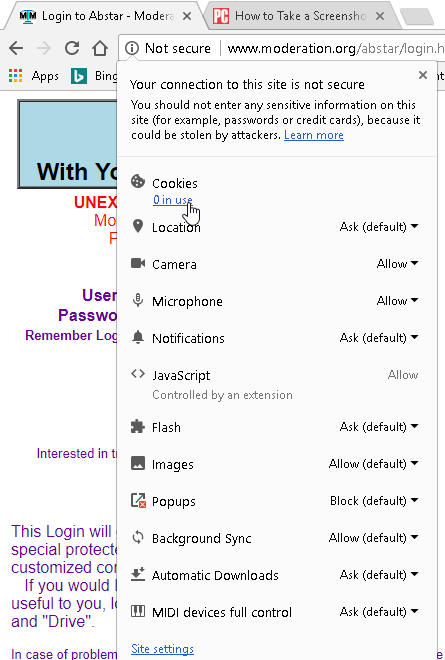
(TIP: "Allow popups" lets many sites work again when they would fail previously; this was a big issue for me when trying to pay the bills.)
Select the link under Cookies. IF NOT FIXED, you will see "0 in use." This means Chrome is blocking all the cookies!
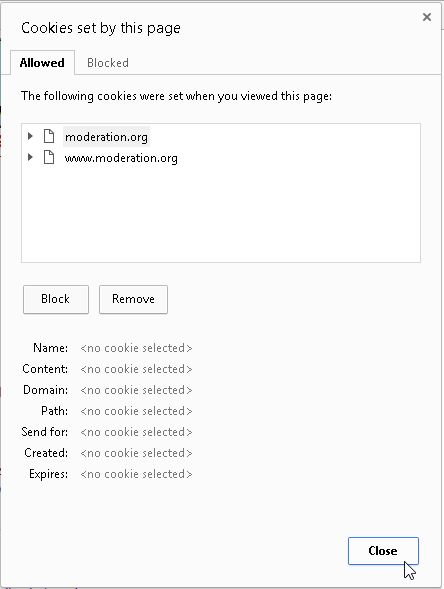
Now you will be in the Cookie Manager screen for this site. You should see NO allowed cookies:
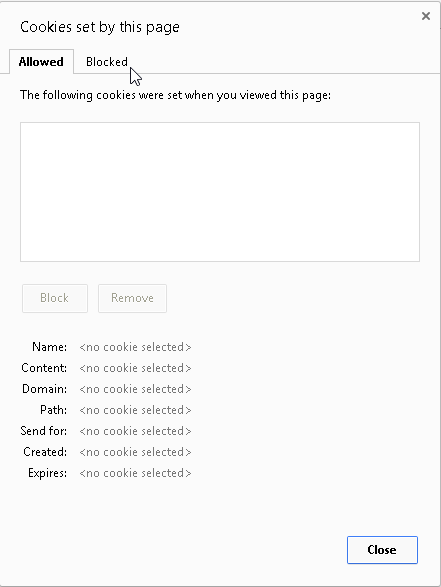
Click on the "Blocked" tab to show blocked cookies.
You should see a listing for both moderation.org and www.moderation.org.
DO THIS ONCE FOR EACH DOMAIN SHOWN.
(You will need to do this twice.)
Select "moderation.org" and press the Allow button.
Select "www.moderation.org"; press the Allow button.
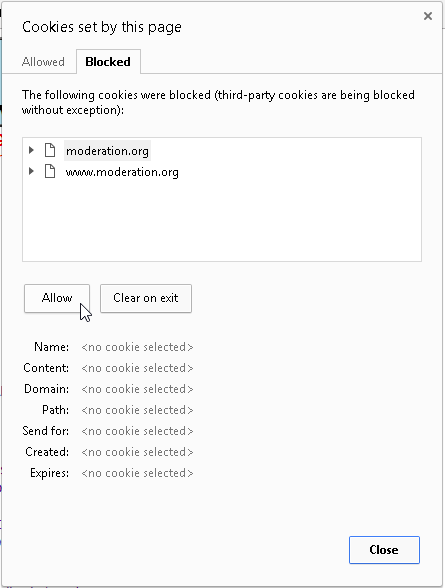
Done? PRESS THE CLOSE BUTTON. (We have to reload the page before any changes are shown.)
NOTE: This is a vital step- you MUST press Close to exit the screen after setting "Allow" on these cookies.
Now you will see a RELOAD button at the top of the page- PRESS THIS BUTTON!
(You need to Reload the page to install the changed cookie settings.)
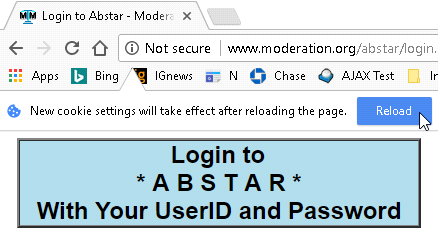
After this, you should be able to log in normally.
(Congratulations!)
If you go the Google Security Manager again and check your link for Cookies, you should see active cookies, and the cookies for moderation.org and www.moderation.org should now be Allowed.
What is the Lost Login *Abstar* Problem?
On the evening of Saturday June 24th 2017, the Moderation.org website suffered a failure of certain key files.
This included the loss of our list of current Logins for *ABSTAR*.
Although we do have systems to create periodic backups, the only backup for
this particular file was from February 13th. 2017.
Our SINCEREST regrets for any inconvenience this may cause.
Aside from login information, no personal user data appears to have been lost.
If you recreate your login with the SAME NAME as your lost login,
you should find ALL your entries- Intact.
This meant that any user who performed any of these actions
on or after 2/13/2017 may need to REPEAT these actions:
(No data will be lost IF you create this login with your original name.)
(*ABSTAR* Administrators have a list of all lost logins.)
Please refer any questions to the *ABSTAR* Admin Group
using our contact form and the link below:
abstar@moderation.org